A laptop not charging can quickly disrupt work, study, meetings, or an important deadline. In some cases, the problem is as simple as a loose power adapter. However, in others, the cause may involve the battery, charging port, power settings, overheating, or internal hardware.
Because several components work together during charging, replacing the battery immediately is not always the right solution. Instead, a structured troubleshooting process can help you identify the source of the laptop charging problem before spending money on repairs or a replacement.
Below are eight common areas worth checking, starting with the simplest possibilities.
Laptop Not Charging Often Starts at the Power Source
Before troubleshooting Windows settings or opening the laptop, begin with the power source. Although this sounds basic, wall sockets, extension boards, and loose electrical connections cause more charging issues than many users expect.
First, connect the charger directly to another working wall outlet. If you normally use a power strip or extension board, remove it temporarily.
Next, check whether:
- The wall socket supplies power to another device.
- The charger is firmly connected to the socket.
- The detachable cable on the adapter is properly inserted.
- Any charging indicator on the adapter or laptop turns on.
- The charging connection remains stable when the laptop is stationary.
If the laptop begins charging after changing the socket, the laptop itself may be working correctly. Therefore, testing the power source first can prevent unnecessary troubleshooting.
Adapter and Charging Cable Faults
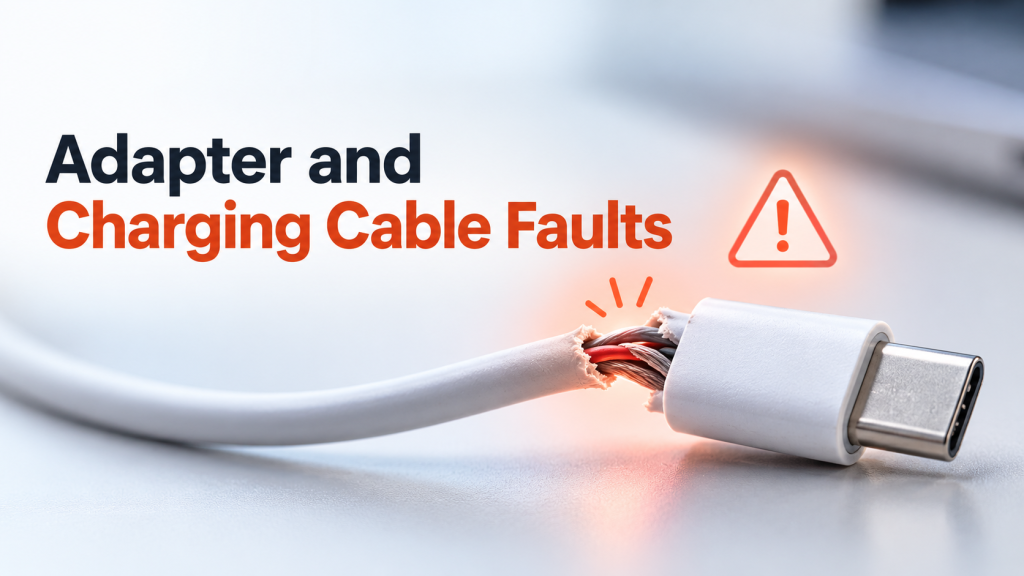
The power adapter and cable are the next components to inspect. Laptop chargers experience regular bending, pulling, heat, and travel-related wear. As a result, internal wires can become damaged even when the cable looks normal from the outside.
Look closely for:
- Frayed or exposed wires
- Sharp bends near the connector
- Burn marks
- Loose connector pins
- Unusual heat from the adapter
- Buzzing or electrical smells
Additionally, verify that you are using a charger with the correct wattage and specifications for the laptop. A charger with insufficient power may keep the laptop running but fail to charge the battery properly, particularly during demanding workloads.
USB-C laptops require extra attention because not every USB-C charger supports the same Power Delivery wattage. For example, a phone charger may physically fit the laptop but may not provide enough power.
If possible, test the device with a compatible manufacturer-approved charger. This is one of the quickest ways to determine whether your laptop charging problem comes from the adapter or the computer.
Laptop Not Charging Because of Port Damage
A damaged or contaminated charging port can interrupt the connection between the charger and the laptop.
Dust, lint, or debris can gradually build up inside the port. Furthermore, repeatedly connecting and disconnecting the charger can loosen the internal socket.
Check the port carefully for:
- Visible dust or debris
- Bent internal pins
- Excessive movement when the charger is connected
- Charging that starts and stops when the connector moves
- Physical damage around the port
Avoid inserting metal objects into the charging port. Instead, switch the laptop off and use a safe cleaning method if dust is visible.
If the laptop only charges when the cable sits at a particular angle, the charging jack may require professional inspection. Continuing to use a loose connection can make the damage worse over time.
Battery Wear and Reduced Battery Health
Laptop batteries naturally lose capacity as they age. Each charge and discharge cycle gradually affects the battery’s ability to store energy.
However, reduced battery life and complete charging failure are different problems. A battery may still charge normally while lasting only a short time. In more advanced cases, though, battery degradation can cause the laptop to stop recognising or charging it correctly.
Common warning signs include:
- Battery percentage dropping unusually quickly
- Battery remaining at the same percentage for long periods
- Sudden shutdowns
- Battery percentage changing unexpectedly
- Laptop working only when connected to power
- A battery replacement warning from the operating system
Windows users can also generate a battery health report using built-in tools. Manufacturer utilities from brands such as Dell, HP, Lenovo, and others may provide additional information about battery condition.
If a laptop not charging issue appears together with extremely poor battery health, battery replacement may be more appropriate than software troubleshooting.
Power Reset and Temporary Electrical Errors
Sometimes, the charging hardware works correctly but the system temporarily fails to detect it.
A power reset can clear residual electrical charge and reset basic power-management behaviour.
For laptops with removable batteries:
- Shut down the laptop.
- Disconnect the charger.
- Remove the battery.
- Hold the power button for around 15–30 seconds.
- Reinstall the battery.
- Connect the charger and restart the laptop.
For laptops with internal batteries, the procedure varies by manufacturer. Some devices include a small reset pinhole, while others require a specific power-button sequence.
Therefore, check the manufacturer’s instructions before attempting an internal battery reset.
Although this method will not repair damaged hardware, it can solve temporary detection problems without replacing any components.
Windows Drivers and Power Management Settings
Software can also contribute to charging problems. Windows uses battery and AC adapter drivers to communicate with the laptop’s power-management hardware.
If these drivers become corrupted, Windows may display incorrect charging information.
A basic driver refresh may help:
- Open Device Manager.
- Expand Batteries.
- Locate entries such as Microsoft AC Adapter and Microsoft ACPI-Compliant Control Method Battery.
- Restart or reinstall the relevant drivers according to the manufacturer’s recommended procedure.
- Restart the laptop.
Windows will generally detect the hardware again after rebooting.
Additionally, install important operating-system and manufacturer firmware updates. BIOS or firmware updates sometimes improve battery detection and charging behaviour.
However, avoid changing BIOS settings or installing firmware from unofficial sources. Because firmware directly controls hardware behaviour, incorrect updates can create more serious problems.
Overheating and Charging Protection
Modern laptops include thermal protection systems. If the battery, processor, or internal components become excessively hot, the device may reduce or temporarily stop charging to protect the hardware.
This often happens when users:
- Place the laptop on a bed or soft surface
- Block ventilation openings
- Run heavy software for extended periods
- Work in very warm environments
- Use a laptop with dust-filled cooling vents
Therefore, if the laptop charging problem appears during intensive use, shut the system down and allow it to cool.
Place the laptop on a hard, flat surface and make sure air can move freely around the ventilation areas. If the laptop frequently becomes extremely hot, professional cleaning or cooling-system maintenance may be necessary.
Charging Limits and Battery Preservation Features
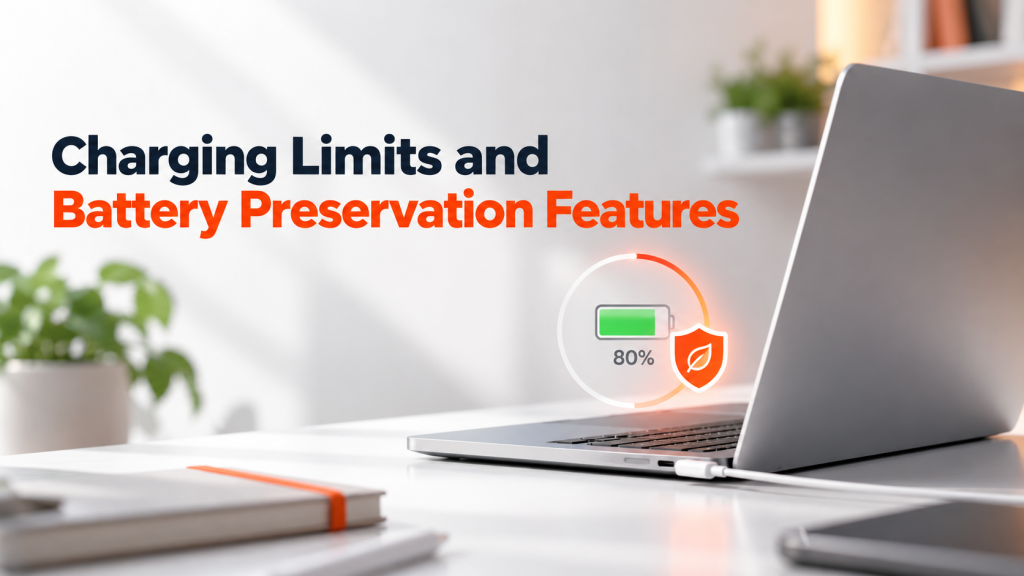
Not every battery that stops at 60%, 80%, or another percentage is faulty.
Many business laptops include battery-preservation features that intentionally limit charging. Manufacturers use these settings to reduce long-term battery wear when laptops remain connected to power throughout the working day.
Depending on the device, the feature may appear as:
- Battery conservation mode
- Smart charging
- Battery protection
- Charging threshold
- Optimised charging
These controls may appear in the manufacturer’s application, BIOS, or operating-system settings.
Consequently, if your battery consistently stops charging at the same percentage, check these settings before replacing the battery.
A deliberate charging limit is not a hardware defect.
Laptop Not Charging After Basic Checks Needs Deeper Diagnosis
If you have tested the socket, charger, charging port, battery health, drivers, temperature, and charging settings, the problem may involve internal hardware.
Possible causes include:
- Damaged charging circuitry
- Faulty DC jack
- Motherboard power-management failure
- Internal battery connection problems
- Liquid or physical damage
At this stage, repeated experimentation may do more harm than good.
A qualified technician can test voltage delivery and internal charging circuits using the correct diagnostic equipment. Moreover, if the laptop contains important business data, professional diagnosis reduces the risk of accidentally damaging the device while attempting a repair.
Repair, Replacement, and Business Downtime
For individual users, waiting for a repair may be inconvenient. For businesses, however, an unusable laptop can directly affect employee productivity.
For example, if an employee’s laptop not charging issue requires several days of diagnosis and repair, that employee may struggle to complete normal work unless another system is available.
Companies should therefore consider both repair cost and downtime.
Repair may make sense when:
- The laptop is relatively new.
- The repair cost is reasonable.
- Performance still meets the employee’s needs.
- Replacement parts are easily available.
Replacement may be more practical when:
- The device is several years old.
- Battery, charging, and performance issues occur together.
- Repairs are becoming frequent.
- The hardware no longer supports required applications.
For temporary requirements, companies can also consider rental devices rather than immediately purchasing replacements. This approach can help teams remain operational while their existing equipment is being repaired or evaluated.
Practical Steps to Prevent Future Charging Problems
A few everyday practices can reduce the risk of recurring charging issues.
- Use a charger designed for the laptop’s required voltage and wattage.
- Avoid pulling the charger out by its cable.
- Keep the charging port free from dust.
- Do not tightly bend charger cables during storage.
- Keep ventilation openings unobstructed.
- Install manufacturer firmware and driver updates from official sources.
- Review battery health periodically on older systems.
- Avoid leaving damaged charging accessories in regular use.
More importantly, address intermittent problems early. A charging connection that works only when the cable is moved should not be ignored. Fixing a loose connector early can prevent additional damage to the charging port or motherboard.
Common Questions About Laptop Charging
Why is my laptop not charging even when plugged in?
The most common causes include a faulty charger, insufficient adapter wattage, a damaged charging port, battery degradation, overheating, driver problems, or an internal charging-circuit fault.
Start by testing another wall socket and inspecting the adapter. After that, check the battery status, charging port, power settings, and device drivers.
Why does my laptop say plugged in but not charging?
The laptop may recognise the adapter while intentionally delaying or limiting battery charging. Battery-preservation settings, high temperature, battery degradation, or an incompatible power adapter can all cause this behaviour.
For example, some business laptops intentionally stop charging around 80% to extend battery lifespan.
How can I tell whether the charger or battery is faulty?
A compatible working charger is the easiest way to isolate the problem. If the laptop charges normally with another approved adapter, the original charger is likely faulty.
However, if multiple compatible chargers produce the same issue, investigate the battery, charging port, or internal power circuitry.
Can a laptop work with a damaged battery?
Many laptops can run from the power adapter even when the battery has failed. However, this depends on the model and the type of battery fault.
A swollen battery requires immediate attention. Stop using the device and arrange professional service because battery swelling can create a safety risk.
Is it worth repairing an old laptop with charging problems?
It depends on the laptop’s age, condition, performance, and repair cost.
If an older system also has poor battery life, limited RAM, outdated storage, or inadequate performance, investing repeatedly in repairs may provide limited value. On the other hand, a simple adapter or charging-port repair on an otherwise capable laptop may still make economic sense.
Where can businesses rent replacement laptops in India?
Businesses that need temporary replacements or additional systems can rent laptops instead of immediately purchasing new hardware.
IndiaRENTALZ provides laptops, MacBooks, desktops, high-performance PCs, and workstations on rent for businesses across India. Rental systems can be useful for temporary replacement requirements, employee onboarding, projects, remote teams, training programmes, and short-term workload increases.
Companies can explore available business rental options through IndiaRENTALZ based on their required configuration, quantity, location, and rental duration.
Keeping Charging Problems From Becoming Productivity Problems
A charging failure does not automatically mean that the laptop needs a new battery. In many cases, the source may be a wall socket, damaged adapter, loose port, charging limit, driver issue, or overheating.
Therefore, diagnose the problem systematically before replacing components.
For personal users, this approach can reduce unnecessary repair expenses. For businesses, it can also reduce downtime and help IT teams decide whether repair, replacement, or a temporary rental device provides the most practical solution.
Most importantly, do not continue using damaged chargers, unstable charging ports, or swollen batteries. Addressing a laptop charging problem early can protect both the device and the person using it.