A laptop becoming unresponsive in the middle of a presentation, client call, design project or important document can disrupt work instantly. In many cases, laptop freezing issues begin with minor warning signs, such as slow application loading, delayed typing, noisy fans or frequent “not responding” messages.
Although restarting the laptop may provide temporary relief, repeated freezing usually points to an underlying performance, software or hardware problem. Therefore, identifying the actual cause is more effective than relying on repeated forced shutdowns.
This guide explains the most common reasons laptops freeze, the steps users can take to recover their work and the situations in which upgrading, repairing or replacing the device becomes necessary.
Common Signs of Laptop Freezing Issues
A frozen laptop does not always mean that the entire system has stopped working. Sometimes, only one application becomes unresponsive, while the rest of the operating system continues to function.
Common signs include:
- The mouse pointer stops moving
- The keyboard does not respond
- Applications display a “not responding” message
- The screen remains stuck on one window
- Audio continues while the display freezes
- The laptop restarts without warning
- Software takes unusually long to open
- The system becomes slow during multitasking
- Video calls begin to lag or disconnect
- The cooling fan runs continuously at high speed
These symptoms help narrow down the cause. For example, freezing during video editing may indicate insufficient RAM or graphics performance. However, freezing immediately after startup may be connected to background applications, storage problems or corrupted system files.
Insufficient RAM and Heavy Multitasking
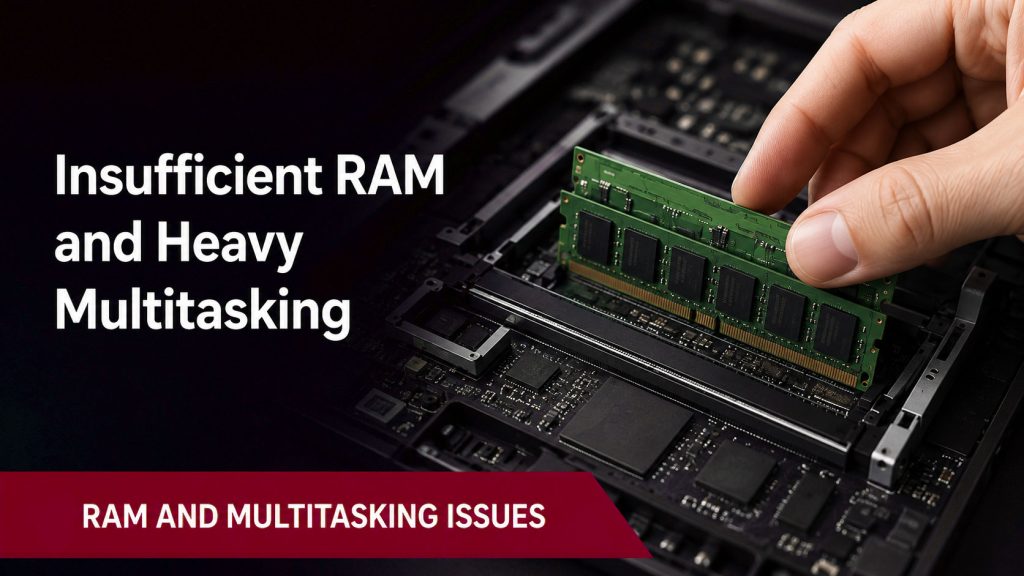
RAM temporarily stores the information required by active applications. Therefore, when several programs run simultaneously, the system needs enough memory to manage them efficiently.
An employee may have a browser with 20 tabs open while also using Microsoft Teams, Excel, email software and a business management platform. If the laptop has limited RAM, it may struggle to handle these tasks.
Once the available memory becomes full, the operating system starts using the storage drive as temporary memory. Since storage is slower than RAM, performance drops significantly and the laptop may freeze.
Users can reduce memory pressure by:
- Closing unused browser tabs
- Exiting applications running in the background
- Disabling unnecessary startup programs
- Restarting the laptop regularly
- Upgrading from 4 GB or 8 GB RAM to 16 GB or more
- Choosing a configuration based on the actual workload
For basic office tasks, 8 GB RAM may work. However, 16 GB is generally more suitable for regular multitasking. Meanwhile, developers, designers, video editors and users working with virtual machines may need 32 GB or higher.
Storage Problems Behind Laptop Freezing Issues
Storage condition plays a major role in overall laptop performance. When the drive becomes nearly full, the system has less space for temporary files, software updates and virtual memory.
As a result, applications may load slowly, updates may fail and laptop freezing issues may become more frequent.
A laptop should ideally have enough free space for the operating system to function properly. Users can create space by:
- Removing unnecessary downloads
- Deleting temporary files
- Uninstalling unused software
- Moving large files to secure cloud storage
- Archiving old projects on external storage
- Emptying the recycle bin
- Removing duplicate files
The type of storage also matters. Traditional hard disk drives are slower and more vulnerable to mechanical failure. In comparison, solid-state drives provide faster boot times, quicker application loading and better overall responsiveness.
However, even an SSD can develop faults. Therefore, unusual clicking sounds, corrupted files, failed startups or frequent disk errors should be investigated immediately.
Overheating and Reduced System Performance
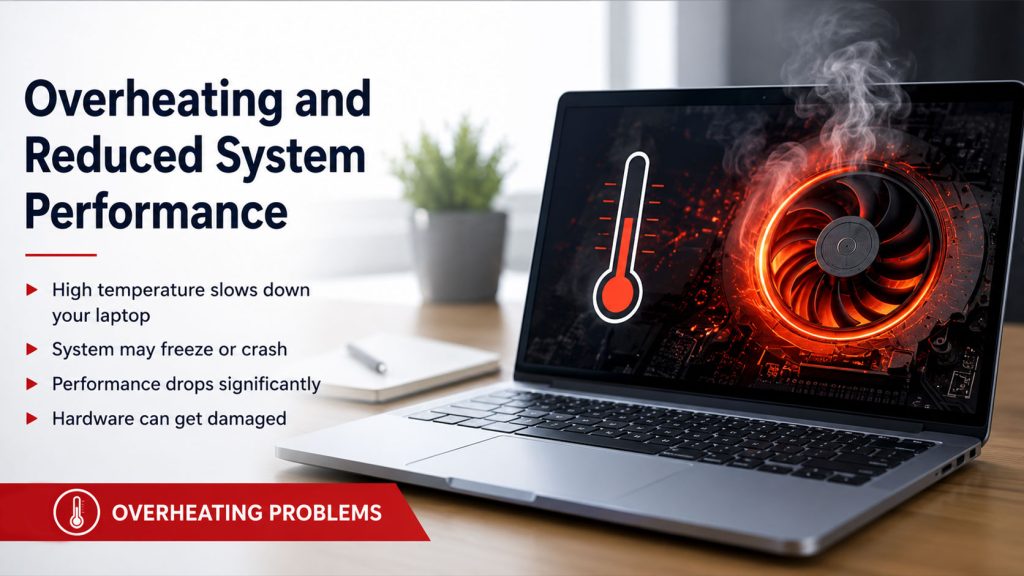
Laptops generate heat while processing tasks. Normally, internal fans and ventilation systems manage this heat. However, blocked air vents, dust accumulation, damaged fans or dried thermal paste can cause temperatures to rise.
To protect internal components, the laptop may automatically reduce processor speed. This process is called thermal throttling. Consequently, applications slow down and the system may freeze under pressure.
Overheating commonly occurs when users:
- Place laptops on beds, sofas or cushions
- Block the ventilation openings
- Use heavy software for long periods
- Work in poorly ventilated rooms
- Ignore loud or damaged cooling fans
- Continue using laptops with excessive dust buildup
Users should place laptops on a hard, flat surface and keep vents unobstructed. Additionally, regular internal cleaning can improve airflow. A cooling pad may help in some cases, but it should not replace professional maintenance when the cooling system itself has developed a fault.
Software Conflicts, Outdated Drivers and Failed Updates
Software-related problems are another major cause of freezing. An application may conflict with the operating system, consume excessive resources or contain damaged files.
Similarly, outdated drivers can prevent the operating system from communicating properly with hardware components such as the graphics card, Wi-Fi adapter, audio controller or storage drive.
Users should regularly:
- Install operating-system updates
- Update device drivers from trusted sources
- Remove unsupported applications
- Reinstall software that freezes repeatedly
- Check for failed updates
- Avoid using unlicensed or modified software
- Create a restore point before major changes
However, automatic updates can occasionally introduce compatibility problems. If the laptop starts freezing immediately after an update, users may need to roll back a driver or uninstall the recent update after checking the system logs.
Therefore, businesses should test major software updates before deploying them across an entire laptop fleet.
Malware and Unwanted Background Programs
Malware can consume processor power, memory, internet bandwidth and storage resources without the user’s knowledge. As a result, the laptop may suddenly become slow, overheat or freeze.
Warning signs may include:
- Unknown applications appearing on the system
- Browser redirects
- Unusual pop-ups
- Sudden battery drain
- High network usage
- Security settings changing automatically
- Fans running even when no applications are open
A full scan using trusted security software can help identify threats. Users should also avoid downloading files from unknown websites, opening suspicious email attachments or installing unverified browser extensions.
Moreover, organisations should use endpoint protection, access controls and regular security updates. This approach not only reduces freezing but also protects business data from ransomware and unauthorised access.
Quick Recovery During Laptop Freezing Issues
When a laptop freezes during important work, the first priority is to regain control without losing unsaved data.
Users can follow these steps:
- Wait briefly before taking action. A heavy application may only be processing a large file.
- Try switching between applications using keyboard shortcuts.
- Open Task Manager and close the unresponsive program.
- Disconnect unnecessary external devices.
- Save open documents as soon as the system responds.
- Restart the laptop through the operating system.
- Use a forced shutdown only when all other options fail.
On Windows, pressing Ctrl + Shift + Esc may open Task Manager. Users can then identify applications consuming excessive CPU, memory or disk resources.
On a MacBook, the Force Quit menu can help close an unresponsive application without shutting down the entire system.
Cloud-based autosave features can also reduce the risk of data loss. Therefore, users working on important files should enable automatic backups whenever possible.
Preventing Repeated Freezing at Work
Temporary troubleshooting may solve a single incident. However, repeated freezes require a more structured approach.
Businesses can reduce disruption by:
- Assigning laptops according to employee roles
- Maintaining sufficient RAM and SSD capacity
- Standardising approved software
- Scheduling preventive maintenance
- Keeping operating systems updated
- Monitoring device health
- Replacing failing batteries and storage drives
- Maintaining backup laptops for urgent requirements
- Training employees on safe device usage
- Using centralised IT support
For example, a sales employee may only need a lightweight business laptop. In contrast, a video editor needs a dedicated GPU, more RAM and faster storage. Providing the same configuration to both users can either increase costs unnecessarily or create performance problems.
Therefore, device allocation should depend on applications, multitasking needs and expected project duration.
Repair, Upgrade or Replacement Decisions
Not every frozen laptop needs to be replaced. In many situations, a RAM or SSD upgrade can extend the device’s useful life.
An upgrade may be appropriate when:
- The processor is still suitable
- The laptop supports additional RAM
- The existing drive is slow but replaceable
- The device is physically in good condition
- The repair cost is reasonable
Professional repair may be necessary when:
- The cooling fan fails
- The laptop shuts down repeatedly
- The storage drive reports errors
- The operating system becomes corrupted
- The motherboard or power circuit develops a fault
Replacement becomes more practical when:
- The laptop is too old for required software
- Components cannot be upgraded
- Repair costs are repeatedly increasing
- Performance remains inadequate after maintenance
- The device causes frequent employee downtime
- Security updates are no longer supported
Businesses should consider both repair cost and productivity loss. A low-cost repair may appear economical, but repeated disruptions can cost more through delayed projects, missed meetings and reduced employee output.
Rental Support for Temporary Device Problems
Companies may not always have enough backup laptops available when a device fails. Additionally, purchasing new devices immediately may not be practical for short projects, temporary employees or urgent replacements.
In such situations, laptop rental can support business continuity by providing:
- Ready-to-deploy business laptops
- Short-term and long-term rental options
- Configurations based on employee roles
- Replacement assistance
- Remote or onsite support, depending on the plan
- Delivery for distributed and project-based teams
- The ability to scale device quantities up or down
Rental solutions are especially useful when businesses need devices quickly but do not want to commit capital to permanent purchases.
However, companies should still evaluate configuration, support terms, replacement timelines, security processes and software requirements before selecting a provider.
Common Questions
Why does a laptop freeze while using multiple applications?
A laptop may freeze during multitasking when available RAM, processor capacity or storage performance is insufficient. Closing unnecessary applications can provide temporary improvement. However, repeated problems may require a RAM upgrade, SSD replacement or higher-performance laptop.
How can laptop freezing issues be fixed permanently?
A permanent solution depends on the cause. Users should check memory usage, storage health, temperatures, drivers, malware and system files. If the device cannot meet the required workload even after maintenance, an upgrade or replacement may be necessary.
Can a full storage drive make a laptop freeze?
Yes. A nearly full drive leaves limited space for temporary files, updates and virtual memory. Therefore, freeing storage space can improve performance. If the drive is failing, it should be replaced and important data should be backed up immediately.
Why does a laptop freeze during video calls?
Video calls use the processor, RAM, camera, microphone, graphics system and internet connection at the same time. The laptop may freeze if background applications consume too many resources or if the device overheats. Updating communication software and closing unnecessary programs may help.
Does overheating permanently damage a laptop?
Occasional temperature increases may not cause immediate damage because modern laptops reduce performance to control heat. However, prolonged overheating can affect the battery, storage, processor and motherboard. Therefore, blocked vents and faulty fans should not be ignored.
How do I recover unsaved work from a frozen laptop?
First, wait briefly and try closing only the unresponsive application through Task Manager or Force Quit. After restarting, check the application’s recovery folder or autosaved versions. Cloud-based applications may also retain a recent copy of the document.
Where can businesses rent replacement laptops?
Businesses can rent laptops from IndiaRENTALZ for temporary projects, urgent replacements, remote employees and expanding teams. IndiaRENTALZ provides business-ready laptops, flexible rental durations, technical assistance and device configurations selected according to the user’s work requirements.
Final Takeaway
Laptop freezing rarely happens without a reason. Limited RAM, full storage, overheating, outdated drivers, malware and failing hardware are among the most common causes.
Therefore, users should avoid treating repeated restarts as a permanent solution. Instead, they should monitor performance, maintain sufficient storage, update software, improve cooling and select a laptop configuration that matches their workload.
For companies, preventing laptop freezing issues requires more than repairing devices after they fail. Proper device allocation, preventive maintenance, backup availability and timely replacement can reduce downtime significantly.
When purchasing new equipment is not immediately practical, rental laptops can provide a flexible way to keep employees working while the affected device is repaired, upgraded or replaced.