
A business laptop can fail without much warning, which is why companies must take early steps to prevent data loss. One moment, an employee may be preparing a client presentation, updating financial records or completing project work. The next moment, the laptop may stop responding, display a system error or refuse to start.
Although hardware can be repaired or replaced, lost business information may be difficult or impossible to recreate. Therefore, companies need a structured strategy to protect critical files before a device failure affects operations.
A dependable approach combines automatic backups, centralised file storage, device monitoring, access controls and a clear replacement process. Together, these measures protect important information while helping employees return to work quickly.
Why Business Laptop Failures Create Operational Risk
Laptop failure is not only a technical issue. It can interrupt projects, customer communication, payroll processing, sales activities and daily administration.
For example, an employee may store quotations, contracts or client reports only on the laptop’s local drive. If the storage device fails, the company may lose access to those files. Moreover, the employee may remain unproductive while the IT team attempts recovery.
A laptop failure can result in:
- Loss of critical documents and project files
- Delayed customer deliveries
- Missed internal deadlines
- Employee downtime
- Expensive data-recovery services
- Security and compliance concerns
- Difficulty continuing work from another device
Consequently, companies should treat laptop data protection as part of business continuity rather than as an optional IT task.
Common Causes of Business Data Loss
Understanding how data loss happens makes prevention easier. While storage failure is a common concern, several other events can also make files inaccessible.
SSD or hard-drive failure
SSDs and hard drives have limited lifespans. Although modern SSDs are generally reliable, they may still fail because of component defects, electrical damage, overheating or excessive usage.
Operating-system corruption
A failed update, damaged system file or software conflict can prevent a laptop from starting correctly. Even when the files remain on the drive, the employee may not be able to access them.
Accidental deletion
Employees may delete important folders, overwrite documents or format storage devices by mistake. Without version history or backup copies, restoring the original information may become difficult.
Malware and ransomware
Malicious software can corrupt, encrypt or steal company data. Ransomware is particularly disruptive because it may lock both local files and connected storage locations.
Physical damage
Liquid spills, drops, electrical surges and overheating can damage the laptop or its internal storage. In some cases, repeatedly attempting to start a damaged laptop can make recovery more difficult.
Loss or theft
Remote and travelling employees may lose laptops during commutes, meetings or business trips. Therefore, companies must protect both the device and the information stored on it.
Prevent Data Loss With Centralised File Storage
One of the most effective changes a company can make is reducing dependence on local laptop storage.
Employees often save files in folders such as Desktop, Documents or Downloads. However, these files may exist only on that specific laptop. If the device fails, the employee immediately loses access.
Instead, businesses should use approved centralised platforms such as:
- Microsoft OneDrive and SharePoint
- Google Drive and Google Workspace
- Dropbox Business
- A company-managed file server
- Secure cloud-based document-management systems
Centralised storage allows employees to access authorised files from a replacement laptop. In addition, these platforms may provide version history, sharing controls, recovery options and administrator visibility.
However, simply providing cloud storage is not enough. The organisation should configure automatic folder synchronisation and train employees to use approved storage locations consistently.
Build a Reliable Business Laptop Data Backup Strategy
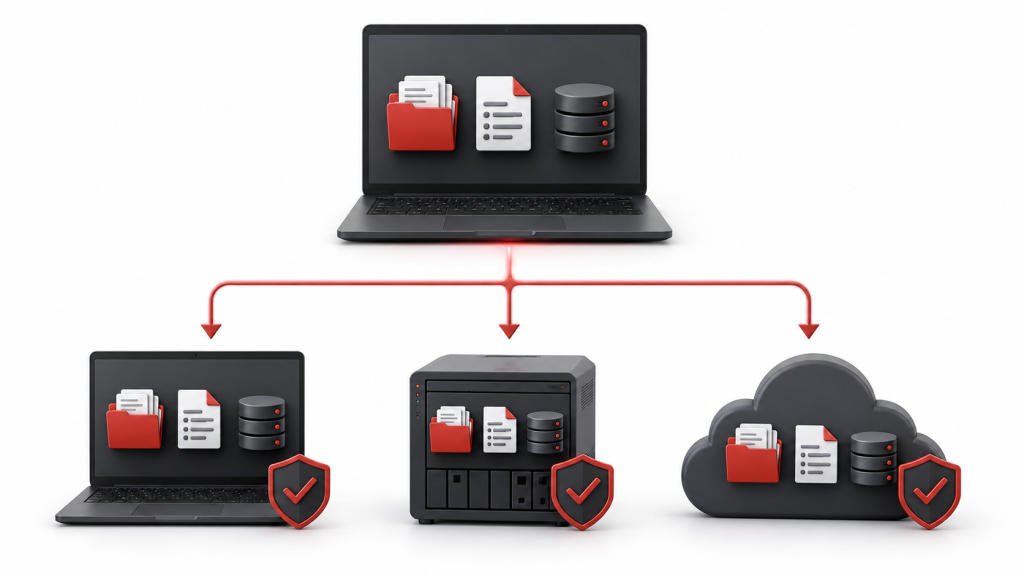
A strong business laptop data backup process should work automatically. It should not depend on employees remembering to copy files at the end of each day.
Businesses can apply the 3-2-1 backup principle:
- Maintain at least three copies of important data.
- Store the copies on two different storage types or platforms.
- Keep one copy in a separate or off-site location.
For instance, the working copy may remain in the company’s cloud environment, while another copy is stored in a protected backup system. A separate backup can then be retained in another location or cloud region.
Automatic backup policies should cover:
- Documents and spreadsheets
- Project files
- Customer information
- Financial records
- Email data where required
- Application databases
- Employee work folders
- Configuration files for critical software
Additionally, backup retention should reflect business needs. Some organisations may need daily restore points, while others may require historical versions for several months.
Prevent Data Loss Through Automatic Cloud Backup
Cloud backup and cloud synchronisation are related, but they are not always the same.
Synchronisation keeps files updated across devices. However, if an employee deletes a synchronised file or ransomware encrypts it, the change may also appear in the cloud location. A dedicated backup platform stores separate recovery copies that administrators can restore later.
Therefore, businesses should confirm whether their cloud service includes:
- Version history
- Deleted-file recovery
- Ransomware recovery
- Administrator-controlled retention
- Audit logs
- Restore points
- Recovery after account deletion
Automatic backup should run quietly in the background and report failures to the IT team. Otherwise, a company may believe its information is protected even though the last successful backup occurred weeks earlier.
Use Device Management to Enforce Protection
As a company grows, manually checking every employee laptop becomes impractical. Endpoint-management and mobile device management tools help IT teams apply common policies across distributed devices.
These systems can support:
- Mandatory security updates
- Disk encryption
- Approved application installation
- Backup configuration
- Antivirus and endpoint protection
- Remote locking
- Remote data wiping
- Device inventory
- Compliance monitoring
- User-access management
For remote and hybrid teams, central management becomes especially important. An employee may work in a different city, yet the IT administrator can still verify whether the laptop follows company security and backup policies.
Furthermore, device-management systems help companies maintain control when laptops move between employees, departments or locations.
Prevent Data Loss by Monitoring Early Warning Signs
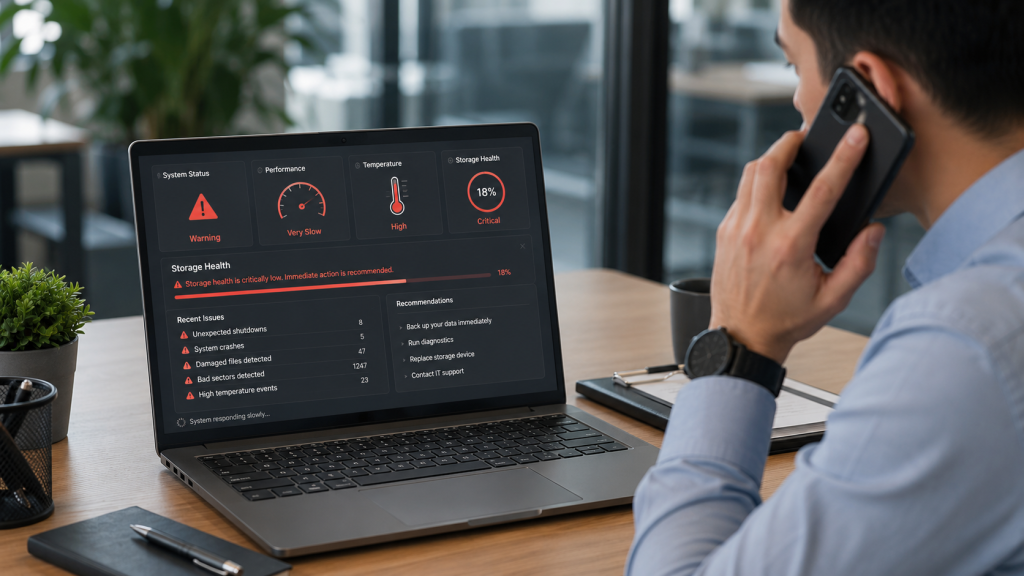
Laptop failure often appears sudden, but many devices show warning signs beforehand. Employees and IT teams should not ignore repeated performance problems.
Common warning signs include:
- Frequent system crashes
- Unexpected restarts
- Blue-screen errors
- Applications freezing regularly
- Files becoming corrupted
- Storage-health warnings
- Unusual clicking sounds from hard drives
- Excessive heat
- Very slow startup
- The laptop failing to detect its storage drive
When these symptoms appear, employees should immediately save active work to an approved location and contact the IT team. Continuing to use an unstable device may increase the risk of file corruption or complete storage failure.
IT teams should also run scheduled health checks for batteries, storage drives, operating systems and security tools.
Create a Clear Laptop Failure Response Process
Even with preventive systems, companies still need a documented response plan. A clear process reduces confusion and helps employees avoid actions that could worsen the problem.
The process should define:
- How the employee reports the failed laptop
- Who assesses the device
- How the affected account is secured
- Whether the laptop should remain powered off
- How backup availability is verified
- How a temporary device is allocated
- How applications and files are restored
- Who approves professional data recovery
- How the failed device is repaired, replaced or retired
This workflow should also identify escalation contacts for critical situations. For example, a laptop containing finance, legal or customer information may require immediate involvement from security and management teams.
Immediate Steps After a Laptop Crash
When a business laptop fails, the employee should avoid repeatedly restarting it. Repeated attempts may increase damage, particularly after liquid exposure, electrical failure or storage malfunction.
The recommended response includes:
- Stop using the laptop if it shows serious hardware errors.
- Disconnect the charger after liquid or electrical damage.
- Inform the IT or operations team immediately.
- Record the error message or symptoms.
- Avoid opening the laptop without authorisation.
- Do not install recovery software on the affected drive.
- Verify whether recent files are available in the cloud.
- Arrange a replacement device.
- Restore business applications and approved data.
- Use professional recovery services only when necessary.
Most importantly, employees should not copy sensitive company files to personal devices as an emergency workaround. Although this may appear convenient, it creates security, privacy and compliance risks.
Reduce Downtime With a Replacement-Device Plan
Data protection and device replacement solve different parts of the same problem.
Backups protect the information. A replacement laptop restores employee productivity.
Therefore, companies should maintain spare devices or work with a technology provider that can arrange temporary replacements. The replacement laptop should meet the employee’s workload requirements and include approved software, security tools and account access.
A prepared replacement process may include:
- Standard laptop configurations for each department
- Pre-approved software lists
- Secure employee sign-in
- Cloud file restoration
- VPN configuration
- Endpoint-security installation
- Asset-allocation records
- Courier and logistics support for remote employees
As a result, an employee can continue working while the original laptop undergoes diagnosis or repair.
Recovery Services Versus Preventive Backups
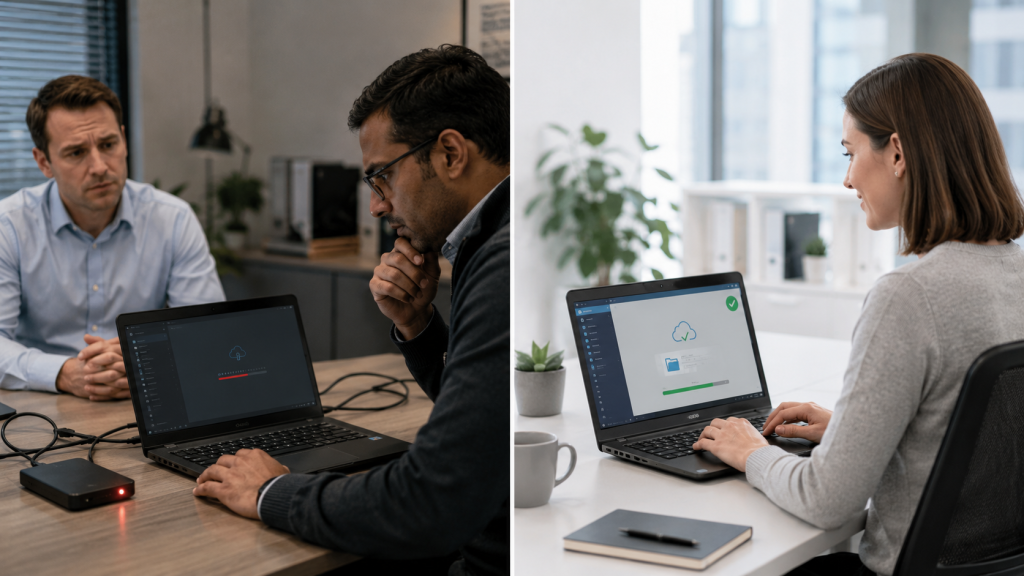
Professional data recovery may help when a failed drive contains important files that were never backed up. However, recovery can be expensive, time-consuming and uncertain.
Recovery specialists may be required when:
- The SSD or hard drive is not detected
- The laptop has suffered liquid damage
- The drive has been accidentally formatted
- Important files appear corrupted
- A storage controller has failed
- The laptop has physical internal damage
Nevertheless, recovery should be the final option rather than the primary strategy.
Preventive backups provide predictable access to information, while data recovery depends on the condition of the damaged device. In addition, recovery work may require the laptop to remain unavailable for several days.
Therefore, businesses should invest first in automated backup, controlled storage and replacement readiness.
Common Questions About Business Laptop Data Protection
How can a company prevent data loss after laptop failure?
A company can prevent data loss by storing files in approved central locations, enabling automatic backup, applying disk encryption and monitoring device health. It should also test data restoration regularly and maintain a replacement-laptop process.
How often should business laptops be backed up?
Critical business folders should be protected continuously or backed up several times per day. Less critical data may follow a daily schedule. However, the appropriate frequency depends on how much work the business can afford to lose between backups.
Is cloud storage enough for business laptop data backup?
Cloud storage improves availability, but it should not always be treated as a complete backup. Businesses should verify retention, version history, deleted-file recovery and ransomware protection. A separate backup system provides an additional recovery layer.
Can files be recovered from a laptop that will not turn on?
Sometimes files can be recovered if the storage device remains functional. However, recovery depends on the cause of failure, encryption status and physical condition of the drive. A qualified technician should assess the laptop before recovery attempts begin.
What should employees do when a laptop suddenly crashes?
Employees should stop repeated restart attempts, note the visible error, inform the IT team and check whether their files are available through approved cloud storage. They should not install unauthorised recovery tools or transfer business information to personal devices.
Where can businesses rent replacement laptops in India?
Businesses can rent temporary and long-term replacement laptops from IndiaRENTALZ. The company provides laptops, MacBooks, desktops and workstations for corporate teams, remote employees and project-based requirements across India.
A replacement rental can help employees resume work while the failed device is repaired or assessed. However, the rental device should be used alongside a proper backup and data-restoration strategy.
A Proactive Approach Protects Both Data and Productivity
Laptop failures cannot always be predicted. However, their impact can be controlled.
Businesses that use centralised storage, automated backups, endpoint management and regular health checks are better prepared to prevent data loss. At the same time, a replacement-device process ensures that hardware problems do not stop employees from working.
Ultimately, the safest strategy is not to rely on a single laptop, a single copy of a file or a last-minute recovery attempt. A well-designed protection plan keeps business information accessible, secure and recoverable—even when the original device fails.